# 1 工程化---》创建vue项目
	-要按vue要求的套路写代码--》写的都是vue的东西
    -最终上线--》要编译---》把vue的代码--》编译成 html,css,js
    -创建工程,编译需要使用:nodejs--》webpack

# 2 安装node环境
	-官网下载一路下一步安装
    -两个命令
    	npm---->pip
        node--->python

# 3 搭建vue的环境
    #1  装cnpm 这个包---》淘宝提供的--》以后有了它--》装模块 cnpm替代npm
	npm install -g cnpm --registry=https://registry.npmmirror.com
    ### 解决方案1:
    // 1. 清空缓存
    npm cache clean --force
    // 2. 关闭SSL验证
    npm config set strict-ssl false
    // 3. 安装
    到这里就可以正常使用npm命令安装需要的工具了。如(npm install -g cnpm   )

    ### 解决方案2:
    // 1. 清空缓存
    npm cache clean --force
    // 2. 切换新源
    npm config set registry https://registry.npmmirror.com
    // 3. 查看源是否设置成功
    npm config get registry
    // 4. 安装
    到这里就可以正常使用npm命令安装需要的工具了。如(npm install -g cnpm   )
 # 2 安装vue脚手架
	cnpm install -g @vue/cli

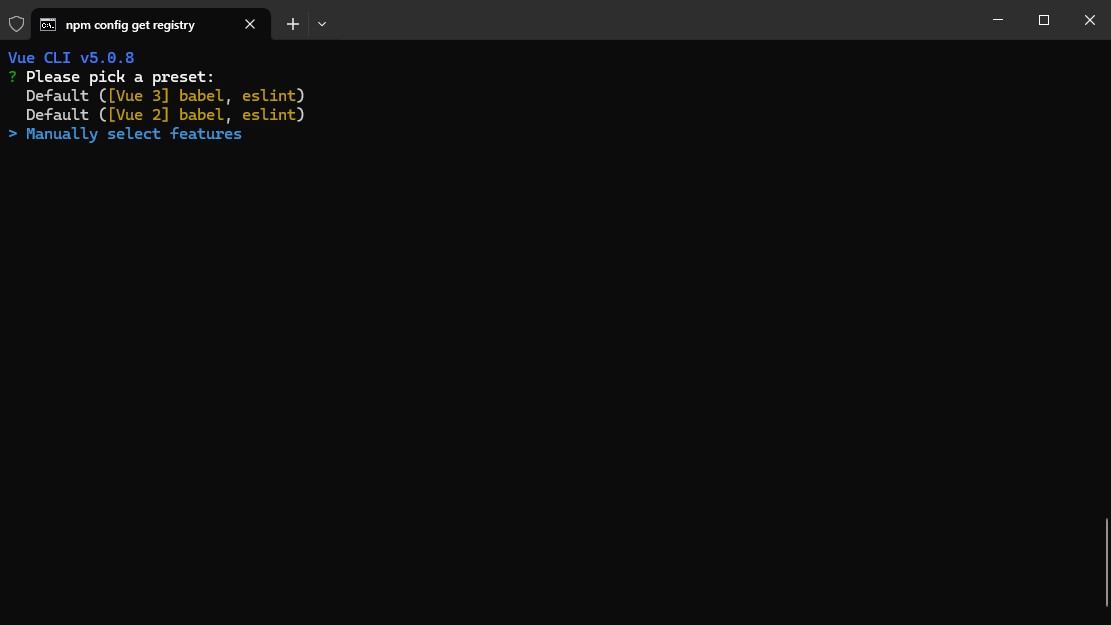
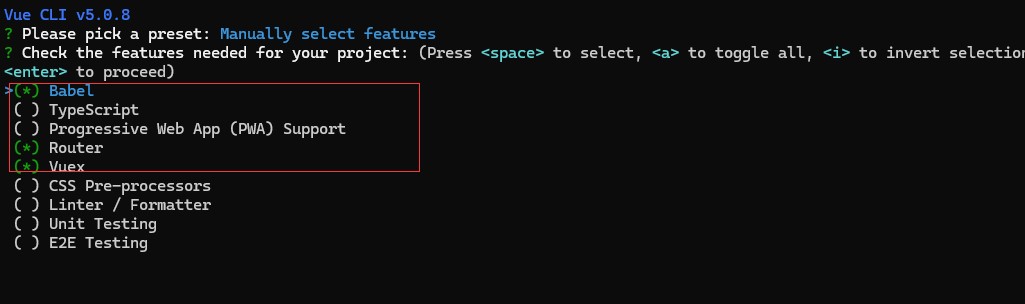
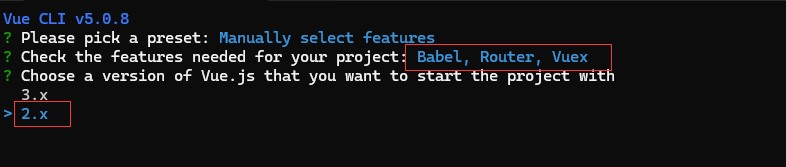
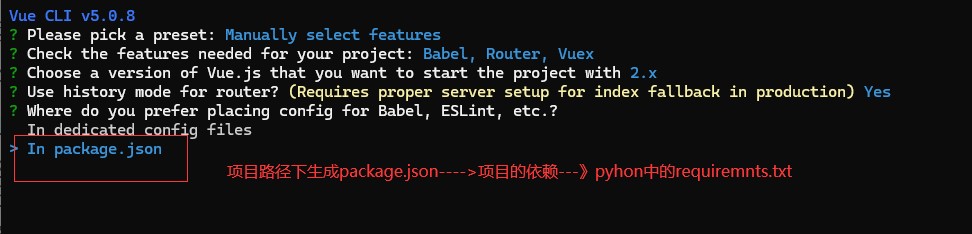
 # 3 装完脚手架,就会有个vue名令,通过vue命令创建vue项目
	vue create myfirstvue # 按下面步骤


# 4 使用webstorm打开项目

# 5 运行项目
	-1 在命令行中[项目跟路径]:使用npm run serve
    -2 配置webstorm--》点绿色箭头执行
    	新建一个npm命令--》执行 serve脚本

vue项目目录结构
myfirstvue        # 项目名
	-node_modules # 等同于python的venv--》虚拟环境-->里面有很多js,项目的依赖-》可以删除---》项目就不能运行了--》在你本地--》cnpm install--》根据package.json项目的依赖,再重新安装--》又可以运行了
    -public       # 文件夹,一般不动
        -favicon.ico # 小图标
        -index.html  # spa--》单页面应用--》整个vue项目,就只有这一个html-如果禁用了js--》整个vue都用不了

     -src        # 文件夹---》核心代码
        -assets  #文件夹,都放静态文件--》图片,css,js。。。
        	-logo.png # 静态图片
        -components  # 小组件,给页面组件使用
            HelloWorld.vue # HelloWorld 组件
        -views       # 页面组件,页面跳转,实现像 html跳转一样的效果
            AboutView.vue # 关于页面
            HomeView.vue  # 首页
        -store            # vuex--》状态管理器
            index.js
        -router            # vue-router---》路由配置文件
            index.js
        -App.vue           # 根组件
		-main.js           # 整个项目入口

   -.gitignore    # git忽略文件,学了git就会了
   -babel.config.js # 装了bable配置文件--》把高版本es语法转成es5
   -jsconfig.json # 不管
   -package.json  # 项目依赖文件--》项目依赖--》npm install--》根据他装
   -package-lock.json # 锁定文件,之前项目中使用模块版本
   -README.md     # 项目介绍
   -vue.config.js # vue整体配置文件
vue项目运行机制
# 1 main.js--->指定了index.html--->id为app的div---》根App.vue 这个组件做了关联
# App是 个组件
new Vue({
  render: h => h(App)  # 代指 el
}).$mount('#app')

new Vue({
    el:'#app'
})
组件写法
# template 写之前我们方在template标签的模版字符串
<template>
  <div id="app">
    <h1>我是根组件</h1>
    <button @click="haneldShow">点我弹alert</button>
  </div>
</template>

# script标签--》原来js代码都写在这里、
<script>
export default {
  name: 'HelloWorld', // 组件名字
  data() {
    return {}
  },
  methods: {
    haneldShow() {
      alert('111')
    }
  }
}
</script>


#style
<style>

button{
  background-color: aqua;
}
</style